To stop new videos recording location, turn off location for the camera: on iPhone, Settings > Privacy & Security > Location Services > Camera > Never; on Android, turn off the location option in the camera app's settings. For videos you already have, check the file first, then remove the location with a metadata remover that doesn't re-encode, or send the video through an app that compresses it. Sending a video as a file or document keeps the location.
How to check a video for location
Drop the video into our video metadata remover or the AI video checker. Both read MP4 and MOV files in your browser and show the exact coordinates if there are any, with a link to the spot on a map. Nothing is uploaded, and even a long video takes a second, because only the metadata is read.
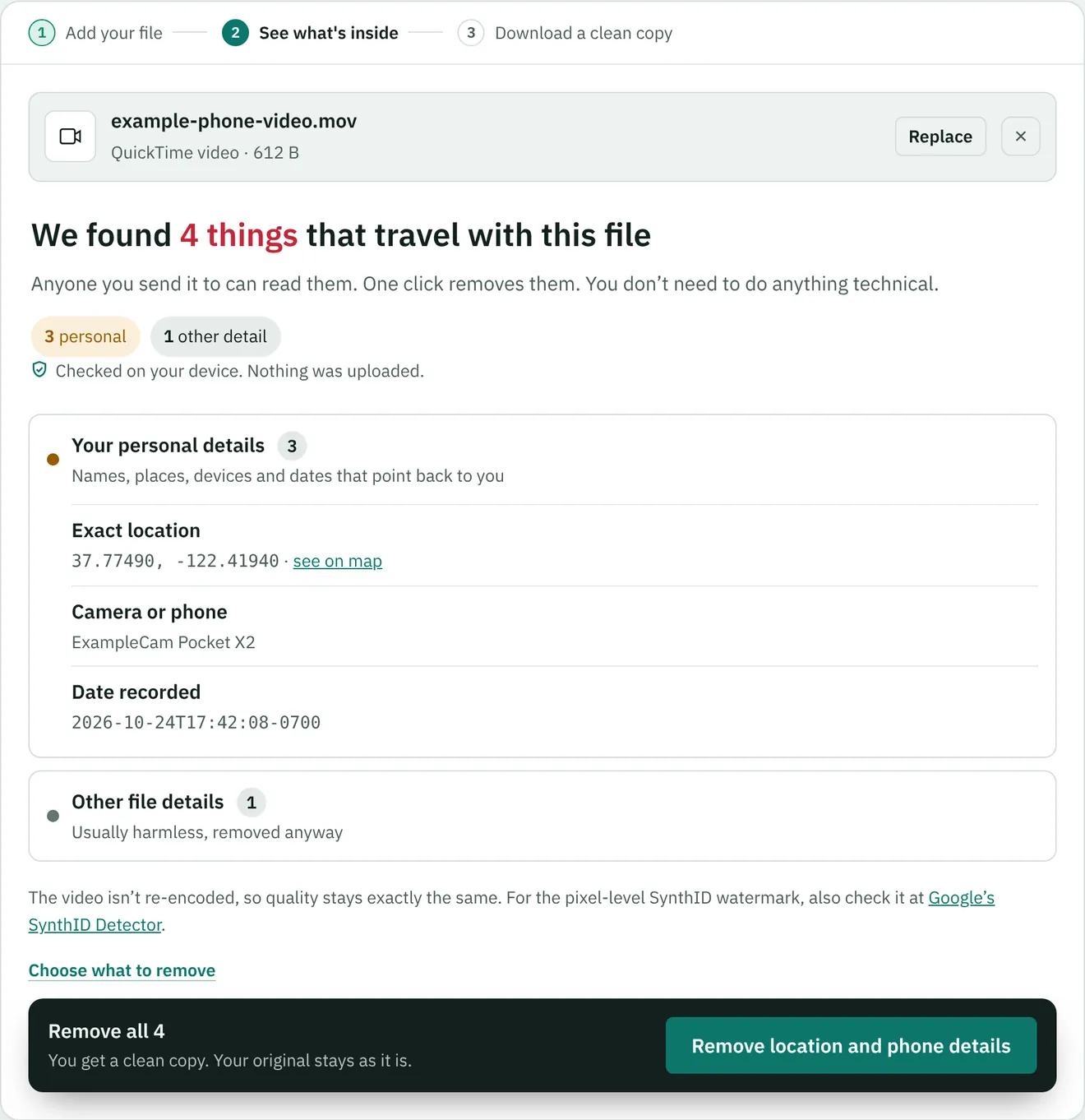
On a phone you can also look in the gallery app: open the video and swipe up, or open its info panel. If you see a map, the location is stored.
Stop new videos recording location
The camera's location setting covers both photos and videos.
iPhone: go to Settings > Privacy & Security > Location Services > Camera and choose Never. Apple notes that location can only be added to photos and videos when the Camera has access to Location Services.
Android: open the camera app's settings and turn off the location option. It's called Save location on Pixel phones and Location tags on Samsung Galaxy phones. Other brands use similar names.
This only affects new recordings. Videos you've already filmed keep their location.
Share a video without its location on iPhone or Android
iPhone: when you share from Photos, tap Options at the top of the share sheet and turn off Location. Apple's instructions describe this for photos, and the switch also appears when you share videos. Check the first video you send this way, by sending it to yourself and dropping the received file into the checker.
Samsung Galaxy: the Gallery share panel has a Remove location data option for photos. If it shows when you share a video, use it, and check the result the same way.
Messaging apps: a video sent the normal way is compressed and usually loses its location. A video sent as a file or document keeps everything. See which apps remove metadata for the details; the same rules apply to videos.
Remove location and metadata from a video you already have
In your browser: the video metadata remover blanks the location, phone model and dates in place, without re-encoding, so the video is exactly as it was. Checking is free; cleaning videos is part of Pro.
Free, with ffmpeg: if you're comfortable with the command line, this copies the video and sound untouched and leaves the metadata behind:
ffmpeg -i video.mov -map_metadata -1 -c copy video-clean.mov
It removes all container metadata, including the recording date, not only the location. Check the result in the AI video checker before you share it.
By re-exporting: saving a new copy from an editing app often drops the location too, but it re-encodes the video, which takes longer and usually costs some quality.
On a Mac or Windows PC
Mac: in the Photos app, select the items and choose Image > Location > Hide Location. Apple's safety guide describes this for photos. If you use it on videos, export a copy and check it before you rely on it.
Windows: there's no built-in setting made for video location. File Explorer's Remove Properties and Personal Information option is designed for documents and photos, so if you try it on a video, check the result in the AI video checker. The browser tool or ffmpeg above are the dependable routes.
Check that the location is gone
Whichever method you use, test the file you're actually going to send. Send the video to yourself the same way you'll send it to others, save what arrives, and drop it into the video metadata remover. If no coordinates show up, you're done. This takes a minute and catches the cases where an app keeps more than you expected.
The location can also be in the picture
Removing metadata hides the GPS coordinates, not what the camera saw. A house number, a street sign, a school logo, the view from a window or a car's number plate can give away a place just as well. Before posting a video publicly, especially one filmed at home or with children in it, watch it once with that in mind. Cropping, blurring or choosing a different clip fixes what metadata removal can't.